

Add a payment with a clear purpose
Open Payments and create a record for the payment you want to follow. Give it a recognizable title, enter its amount and date, and select the appropriate type and income source where available.
Before saving, review the status, allocation, and whether an additional payment belongs in the forecast. These choices affect how the record appears in your income overview.
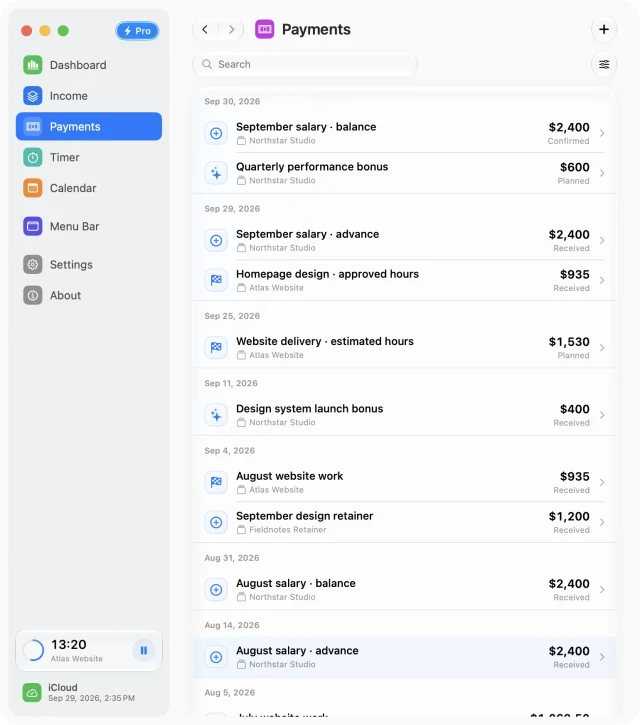
Use statuses consistently
- Planned is useful for a payment you expect.
- Confirmed distinguishes an agreed payment from an early expectation.
- Received records that the payment has arrived.
Update the record as its status changes instead of adding another copy for each stage. Save your changes when you finish editing.
Find a record in a longer history
Payments opens with All Time selected. Narrow the date range when you are reviewing a particular week or month, then combine the available type and status filters. Search for the title of a project or milestone to reduce the list further.
If a record seems missing, clear filters and check All Time before creating it again. You can also select its date in Calendar to see it alongside that day’s work.
Review payments alongside earnings
Use Dashboard to compare payments with income over the same period. Keep the source’s recurring rate and schedule accurate, and review how each additional payment is allocated so a milestone does not enter your forecast twice.
Payments, Dashboard, and Calendar are available in Free. Additional income sources require Pro.
Free for Mac · macOS 14 or later