

Choose the month and source
Open Calendar and select a month. All Sources gives you an overview across your work. Choose a specific income source when you want to change its schedule for a particular date.
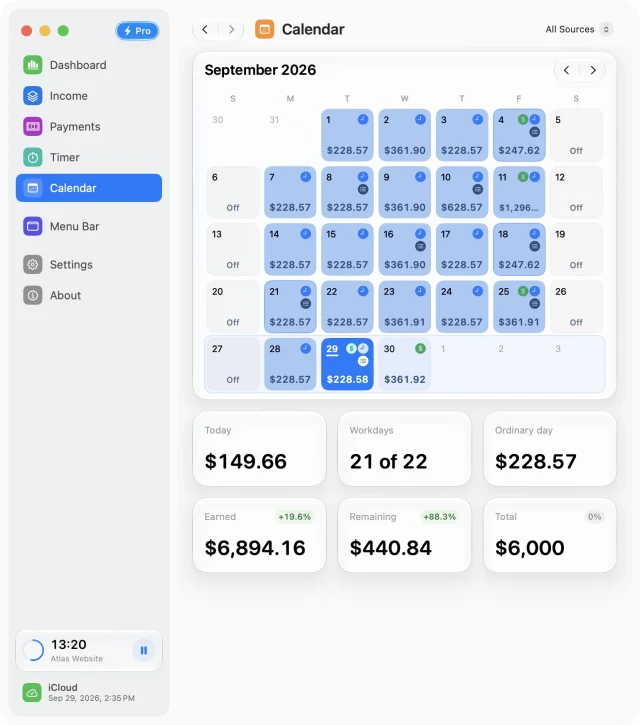
Change one day without changing the week
- Select a specific source rather than All Sources.
- Select the day to open its details in the day inspector.
- Choose the appropriate exception: a working day, a nonworking day, paid leave, or a half day.
- Review the daily amount and monthly summary after applying the change.
Use day overrides for exceptions. Edit the income source’s recurring schedule when your normal working week changes.
Keep the day’s records together
A selected date brings its income, payments, tracked sessions, and notes into the inspector. This is useful when you want to understand a busy day without searching several histories.
Adding a note does not require changing the recurring schedule. Use a note for context, such as the milestone you worked on, and use a schedule override only when the day itself should be treated differently.
Review the month after an exception
After adding time off, compare the month’s daily figures and summary. If the result is unexpected, check whether the day is paid leave, unpaid time off, or a half day, and confirm that the source is active on that date.
For payment details, follow the Payments guide. To adjust the work behind a session, use Timer history.
Free for Mac · macOS 14 or later