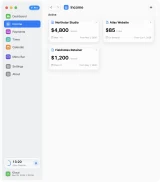

Set up your first income source
Choose a rate, set your working days, and give MonthMade the starting point for your income calculations.
Read guidePractical walkthroughs for your income, time, and working month
Build a reliable picture of your working month
Choose a rate, set your working days, and give MonthMade the starting point for your income calculations.
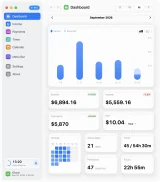
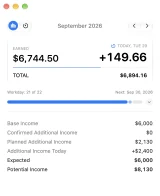
Read guideCompare earned income, expectations, payments, and tracked time across a day, week, month, or year.
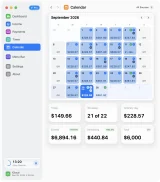
Read guideUse the Calendar to review daily income, change a single day, and keep payments, sessions, and notes in context.
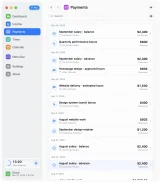
Read guideKeep salary payments, project milestones, and bonuses in one timeline, with a clear status for each record.
Read guidePut recurring contracts, hourly work, project payments, and time off into a simple weekly workflow.
Read guideTrack your work and keep the essentials close
Start a stopwatch, add a missed session, and decide which saved hours should contribute to income.
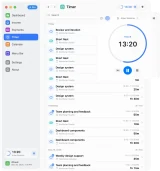
Read guideChoose a preset, run focus and break intervals, and keep the finished work in your time history.
Read guideChoose what MonthMade shows beside your Mac’s status icons and use the compact income and timer panels.
Read guideSet up your Mac, protect your privacy, and manage your records
Use Hidden and Auto Privacy to control when financial amounts are visible in MonthMade.
Read guideEnable optional private iCloud Sync, understand what travels with your data, and check common sync problems.
Read guideMake MonthMade fit your Mac with appearance, language, currency, date formats, notifications, and launch settings.
Read guideSave a complete copy of your MonthMade records and understand what happens when you reset the app.
Read guideUnderstand Free, Monthly, and Lifetime, then restore access on a Mac using your Apple Account.
Read guideSomething not working as expected? Visit the Help Center or get in touch.