

Start a work session
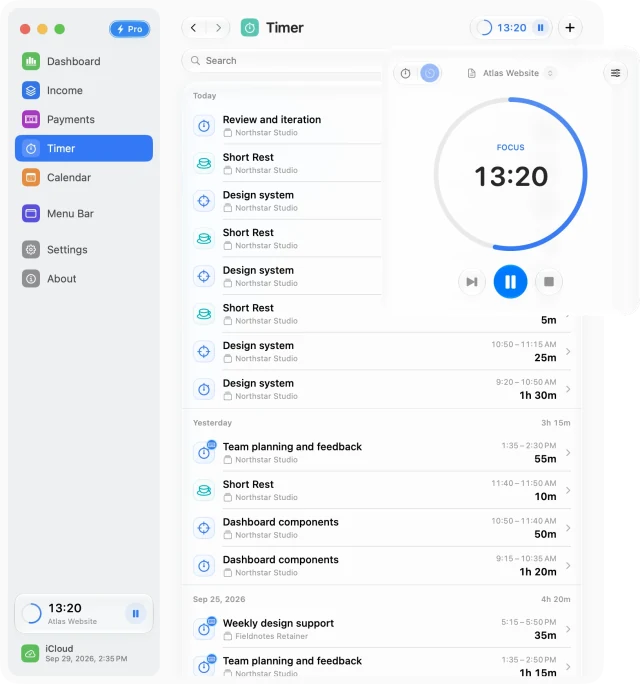
- Open Timer and its timer controls, or use the persistent sidebar timer widget.
- Choose Stopwatch and the income source for the work.
- Start tracking. Pause when you need to, then finish the session when the work is complete.
- Review the saved entry and give it a useful name so you can recognize it later.
Closing the timer popover does not stop tracking. You can reopen the controls from Timer, the sidebar, or the menu bar.
Add or edit time after the fact
Use Add Session when you worked without starting a timer. Select a source, enter the start and end, review the tracked duration, and add a name or note. Save the entry when the details are correct.
Open an existing session to correct its details. History starts with the last 30 days; change the date range or use All Time when you need an older entry. Combine search and source filters to narrow the list.
Choose when time should become income
For a saved work or focus session linked to an hourly source, Billable makes its duration contribute at that source’s hourly rate. Other sessions remain time records. A session never creates a payment record.
Review the result in Dashboard or Calendar after saving. Check the source and its rate if the amount differs from what you expected.
Switch to a focus routine
Choose Pomodoro when you prefer planned focus and break intervals. Stopwatch, Pomodoro, manual entries, and complete session history are included in Free; there is no Pro requirement for the time-tracking controls.
Free for Mac · macOS 14 or later