

Enable MonthMade in the menu bar
Open Menu Bar in the app’s sidebar and turn on Enable. The preview in this page lets you see the display choices before returning to your work.
Closing the main window leaves the enabled menu-bar item available. Open it to check income or reach the timer controls.
Choose a useful display
- Choose a template for the information you want to keep visible.
- Use the display controls to select amounts, percentages, or Hidden.
- Adjust Compact Amounts, Hide Zero Cents, and currency display to suit the space in your menu bar.
- Choose how nonworking days should appear and review the preview.
Realtime has its own Enable switch and update interval in seconds. Review those controls if you want to change how frequently the live display refreshes.
Use the panel for quick checks
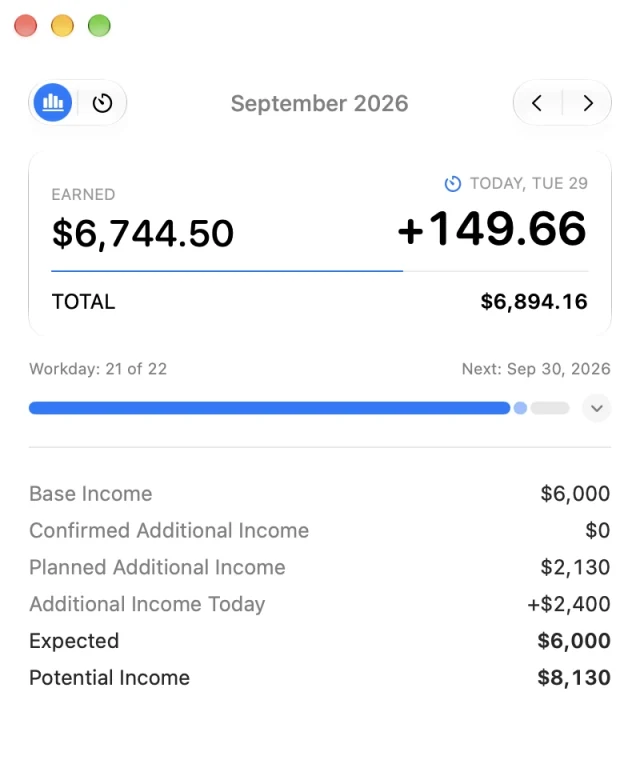
Click the menu-bar item to see today’s income, progress through the month, and the contribution from each source. Switch to the timer controls to start, pause, or resume a stopwatch or Pomodoro.
Use the main app for longer histories and edits. Dashboard is useful for comparisons across dates; Timer is where you can review and correct saved sessions.
Keep control of what is visible
Use Hidden when you want to conceal values manually. In Settings → Privacy, Auto Privacy can hide amounts or hide amounts and temporarily remove the menu-bar item during detected screen sharing or mirroring.
Detection is best effort. See the privacy guide before relying on automatic hiding in a presentation.
Free for Mac · macOS 14 or later